Using a GPU
Why Use A GPU
-
Mirumoji transcribes audio with
faster-whisperand converts media withFFmpeg -
For anything longer than a short clip, like an anime episode, or a podcast, that work is
MUCHfaster on GPU than a CPU -
Mirumoji was designed for long media, so it needs a GPU to power the transcription and media conversion operations
The Transcription Backend option lets you choose where that work runs, so you don't need to own a GPU to run Mirumoji
| Backend | Needs | Best When |
|---|---|---|
modal |
A Free Modal Account |
You don't have an NVIDIA GPU, or don't want to set one up |
local |
An NVIDIA GPU + the NVIDIA Container Toolkit |
You have a capable NVIDIA GPU and want everything on your machine |
Local NVIDIA GPU
Runs faster-whisper directly on your own GPU inside the backend container
Everything stays on your machine. No cloud account is involved
Requirements
-
An
NVIDIA GPUwith up-to-date drivers -
The
NVIDIA Container Toolkit, which lets Docker Containers use the GPU -
A few GB of disk for the GPU images + the transcription model, which downloads on the first transcription into a persistent cache volume and is reused on every run after that
Verify The Requirements On Your Machine
Nvidia GPU and Nvidia Container Toolkit should both report ok
Configuration
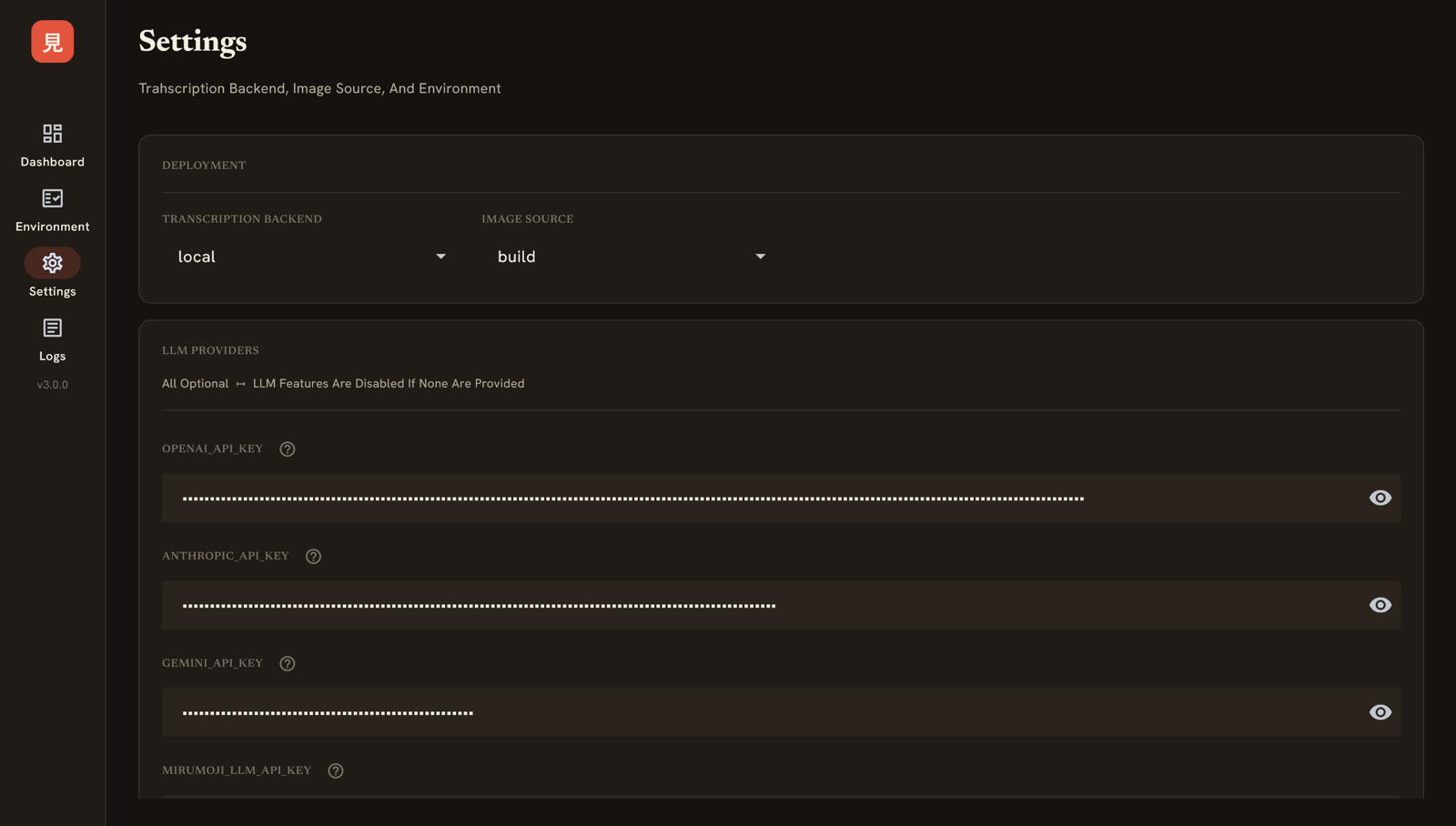
Set the Transcription Backend option to local on the CLI or the Desktop Launcher
Modal (Cloud GPU)
This is the default backend because it works on any computer
Modal runs code on cloud GPUs on-demand
The free tier includes a generous amount of monthly compute credits, which is plenty for personal use
How It Works
- With the
modalbackend, Mirumoji runs its lightweight CPU image on your machine anddelegatesonly the heavy transcription / conversion of media to short-livedModalGPU containers
Step By Step Request Workflow
-
You request a transcription / conversion on the frontend
-
The backend asks
Modalto spin up an ephemeralGPUcontainer running a fully-configured Mirumoji GPU Docker Image -
The backend uploads the media into a short-lived
Modalvolume that the container reads from -
The container runs the transcription / conversion work and returns the result (writing any converted file back to the same volume for the backend to retrieve)
-
The container shuts down and the temporary volume is discarded
Get Your API Token Pair
-
Sign Up At
modal.com -
Click on
Settings→API Tokens -
Click
Create New -
Copy The
MODAL_TOKEN_ID+MODAL_TOKEN_SECRET
Configure Them In Mirumoji
-
In The Desktop Launcher, Enter
MODAL_TOKEN_ID+MODAL_TOKEN_SECRETUnderSettings→Modal -
Click
Save Configuration -
Go Back To The Dashboard
-
Click
Up
Tuning Modal (Optional)
| Variable | Default | What it does |
|---|---|---|
MIRUMOJI_MODAL_GPU |
A10G |
Which GPU The Modal Containers Run (T4, L4, A10G, A100, ...). See Modal's Available GPUs |
MIRUMOJI_MODAL_SCALEDOWN_WINDOW |
60 |
Seconds To Keep An Idle Modal Container Warm Before It Scales Down (Faster Reuse In Continuous Use) |
MODAL_FORCE_BUILD |
0 |
Set To 1 To Force Modal To Rebuild Its Cached App Image (On Mirumoji Updates) |
MIRUMOJI_MODAL_IMAGE |
svdc1/mirumoji-modal-gpu:<version> |
Override The Docker Image The Modal GPU Containers Run → Advanced |