GUI Setup
This section will teach you how to get mirumoji running with the Desktop Launcher
The Desktop Launcher Isn't The App
-
The main Mirumoji application runs via
Docker Compose -
The
Desktop Launcheris just a friendly front door to it which automatically runs all the Docker commands,checks if the external dependencies needed by Mirumoji are installed in your machine, and helps you manage the main application more easily -
You still need
Dockerto be installed and running
Getting The Launcher
There are 2 Ways To Run The Desktop Launcher
Pick The One That Fits You
Download the pre-built desktop bundles for your OS from the GitHub Release Page
-
Each bundle is
mirumoji-<version>-<os>.zipfolder containing a standalone executable -
No Dependencies Required
Install the mirumoji python package
-
Needs the
mirumoji[gui]extra dependencies -
Requires you to have
Python>=3.10installed in your machine
Starting The Launcher
- Unzip the
mirumoji-<version>-<os>.zipfolder
Open the unzipped folder and run Mirumoji.exe
Open Mirumoji.app
Unsigned Build
Since the build is unsigned, the first launch needs Gatekeeper cleared
-
Right-Click App →
Open -
Alternatively, run
xattr -dr com.apple.quarantine Mirumoji.appin the terminal
Using the Launcher
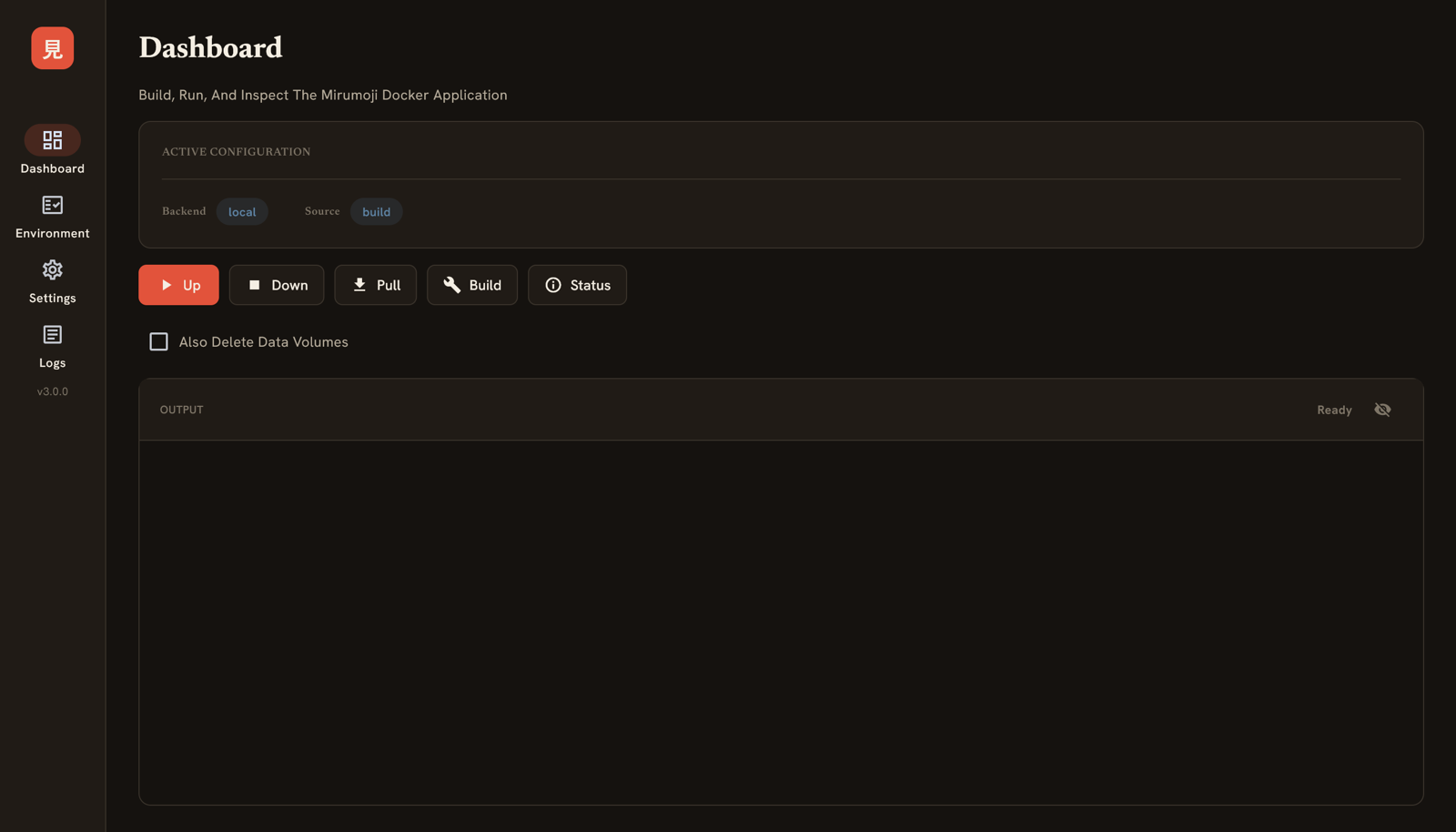
The Desktop Launcher Has 5 Panels
| Panel | What It Does |
|---|---|
| Dashboard | Start / Stop / Build Images / Watch Status |
| Environment | Run Dependency Checks (Same as mirumoji doctor) |
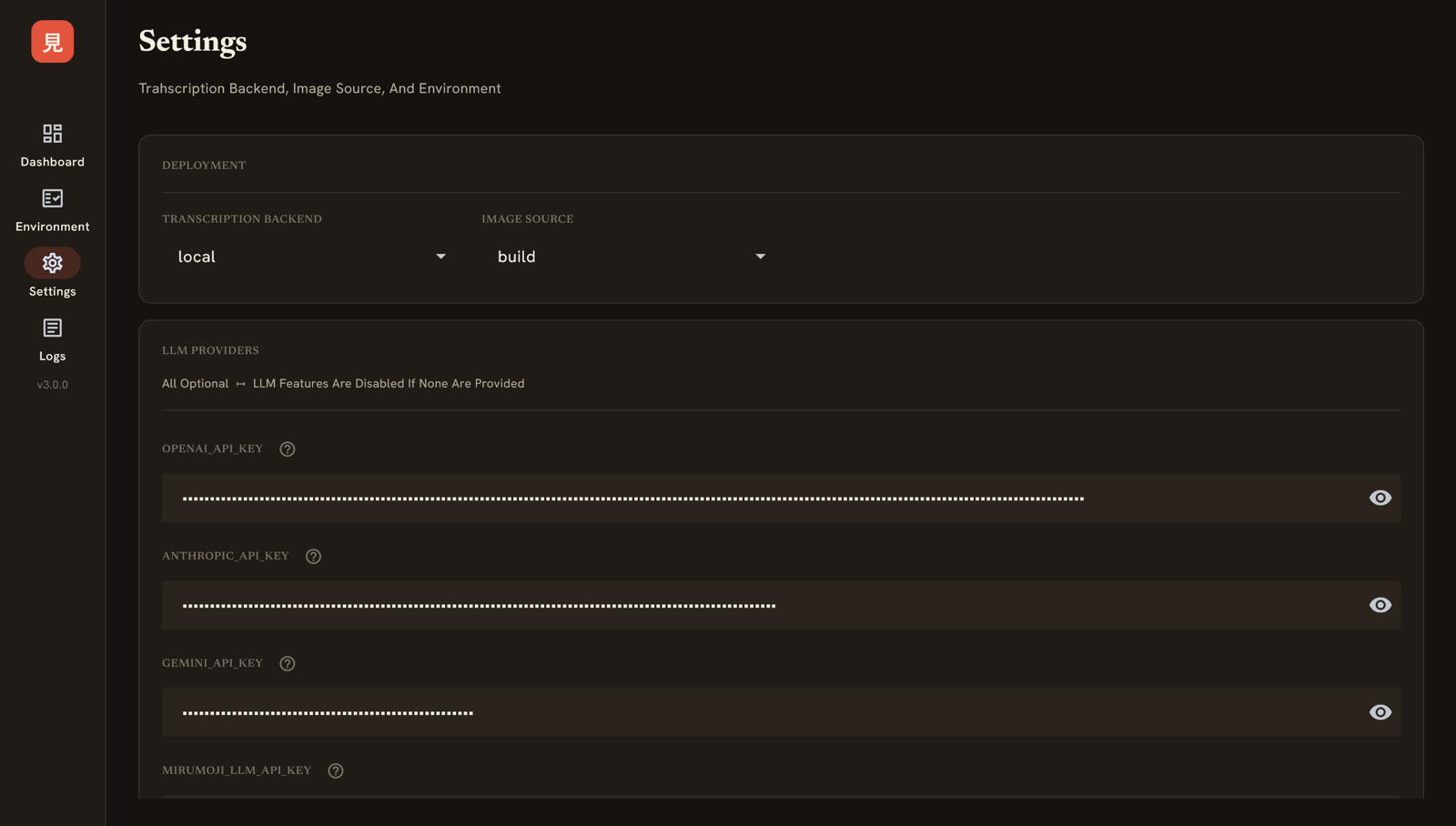
| Settings | Choose The Transcription Backend / Image Source / Image Version, Set LLM / Modal API Keys + Advanced Overrides, Delete All Local Data |
| Logs | Stream + Filter The Docker Compose Application's Logs, Or Read The Modal-Hosted App's |
| Modal Host | Deploy, Inspect, Tear Down, And Back Up The Full App On Your Modal Account (mirrors the modal CLI commands) |
Typical First Run
-
Open
Settings -
Choose Your
Transcription Backend -
Enter Any Required API Keys (If Using
Modal) -
Click
Save Configuration -
Go Back To
Dashboard -
Click
Up -
Open
https://localhostIn Your Browser
Hosting On Modal
The Modal Host panel deploys and manages a full, private Mirumoji instance on your own Modal account, mirroring the mirumoji modal commands
-
Deploy → Build And Deploy The Hosted App, Then See Its URL And Login Details
-
Status → Check Whether The App And Its Data Volume Are Live
-
Download Data → Back Up The Hosted Volume To A Local Folder
-
Stop → Stop The App, Optionally Deleting The Data Volume
The config pills show what a deploy would use (CPU, memory, requests, image version, GPU, and capacity)
Full Walkthrough
See the Modal Host Setup guide for the complete flow, including the GPU and non-preemptible host options
Reading Logs
The Logs panel streams the local Docker Compose application, and can also read the Modal-hosted app
-
Source → Choose Between
DockerAndModal -
Service → Narrow The Stream To One Container.
DockerOnly, So It Is Disabled UnderModal -
Tail Lines → How Much Recent History To Fetch
-
Follow → Keep Streaming Until You Press
Stop
Modal Logs
The Modal source needs your Modal credentials set and the host deployed. It mirrors mirumoji modal logs, so Tail Lines is capped at 20000 and is ignored while Follow is on